


The Service Item Grid is where users add Vendor Services. Click Insert Row for a new record to be added to the grid. With the new record select the Code field and enter the Item to be added. The drop down list will display Items matching what has been entered. Items that have a Vendor Tariff setup will display the Vendor, Ranking, & Currency. You cannot select an Item that does not have a Tariff set up.
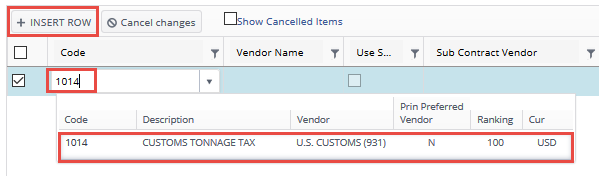
Select the appropriate Item & Vendor for this Service. The item is added to the grid and the Amount is populated.
Repeat the above until all Items have been added to the Grid then Click Save. Note: You may Save as you go.
You must Save your Items before you will be able to edit the Amount. After saving you will be able to click on the Amount, shown below, to open the Line Item Details window.


Cancel Changes button – This button will remove all unsaved items from the Grid.
Delete Selected button – Saved Items only. You may select one or more items using the select checkbox in the left column and click the Delete Selected button. This will remove the selected item(s) from the Service Items Grid. There is not an “Undo” function so be careful when doing this. You cannot delete Service Items that have Workflow Started.