


- If you see a checkbox for “Print Blank” then Accounting has approved this Vendor to Print Checks without Amounts or Check Date.
- You will be required to write the Check Date, Numeric Amount, and Legal Amount on the printed check before giving this to the Vendor.
- Posting: After completing the check and giving it to the Vendor you are required to enter the Check Date and Amounts into Fairwater. Critical: The Posting of the check in Fairwater must be done within the same day that the check is given to the Vendor.
- If you want the check to print with Amounts that you specify in the Pay Amount column then uncheck the “Print Blank” check box. This will generate the check normally with Amounts and Check Date, and Posting will not be required later.
- Carefully review your selections then click Generate Check.
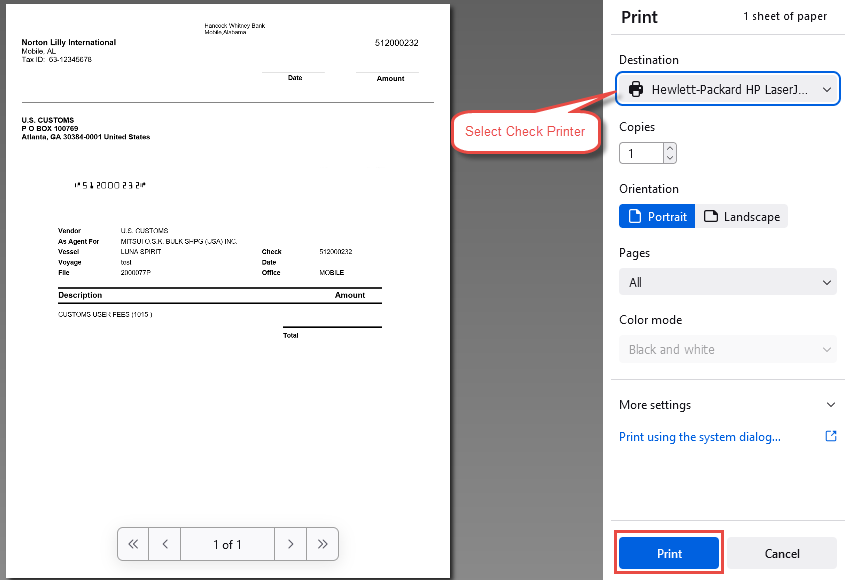
- The Check will be sent to your local check printer.
- Service Items that have an unposted Blank Check will be highlighted in Gray in the Service Items grid.
- If you have an unposted blank check for a Service Item you will not be allowed to generate any more checks against that item until the blank check process is completed (Posted or Voided).
Generate Check(s) Rules
Posting/Voiding Blank Checks
- For checks that were Printed as blanks you will use the Post/Void Blank Check(s) button to Post the check. Critical: The Posting of the check in Fairwater must be done within the same day that the check is given to the Vendor.
- Review the Service Items to confirm the Paid Amounts do not exceed the Estimated Amounts. If they do, adjust your Service Items before proceeding.
- Click the Post/Void Blank Check(s) button.
- A popup screen will appear showing a list of Blank Checks Not Posted.
- Click on the check number to be posted.
- Enter the Check/Void Date, Check Amount ($0.00 if Voiding), and Accounting Period.
- Skip this step if you are voiding the Check. Select the check boxes for the Service Items included in the payment and enter the appropriate Pay Amounts for each of them. Pay Amounts must be less than or equal to the Balance Amount. If your payment exceeds the estimate go back to the Service Item to adjust the estimate.
- Carefully review your work then click Post.
- If you need to void the check, click on Void. You will get a confirmation pop up to confirm you want to Void the check.
- No printout is generated in this process.