Vessel File Validation
This process is being implemented in order to ensure that all required steps are performed after vessel sailing, in order to expedite issuance of Disbursement Accounts to our customers in a timely manner, and to ensure a high quality of invoicing.
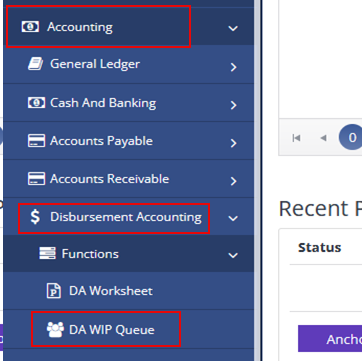
Navigate to DA WIP Queue by going to Accounting, Disbursement Accounting, Functions, and DA WIP Queue
Enter Entity, Office, and No for File Validated
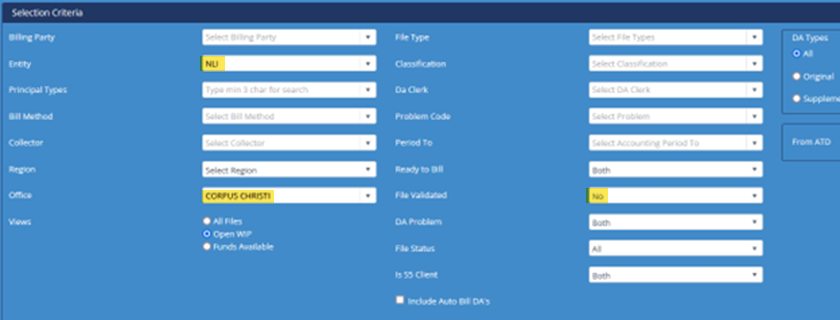
Click to refresh

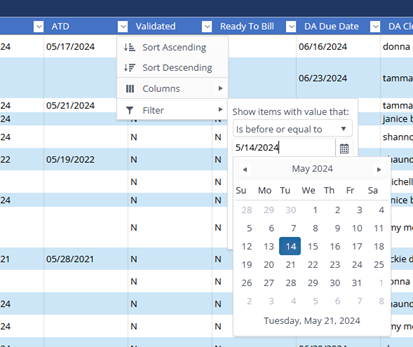
This will bring up ALL Files that have not been validated for the selected office; this can then be filtered by ATD to see only the files XX days or older (KPI is to validate within 10 days)
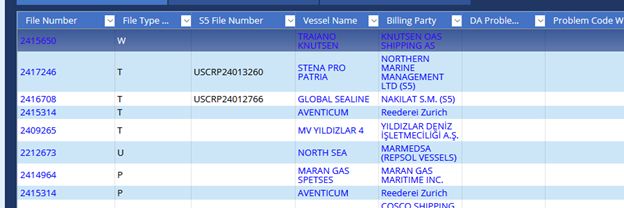
Click on the Vessel Name to go into Agency Fee & Services Tab; from here you can scroll down to bottom of the page to validate the file.
VALIDATE FILE:
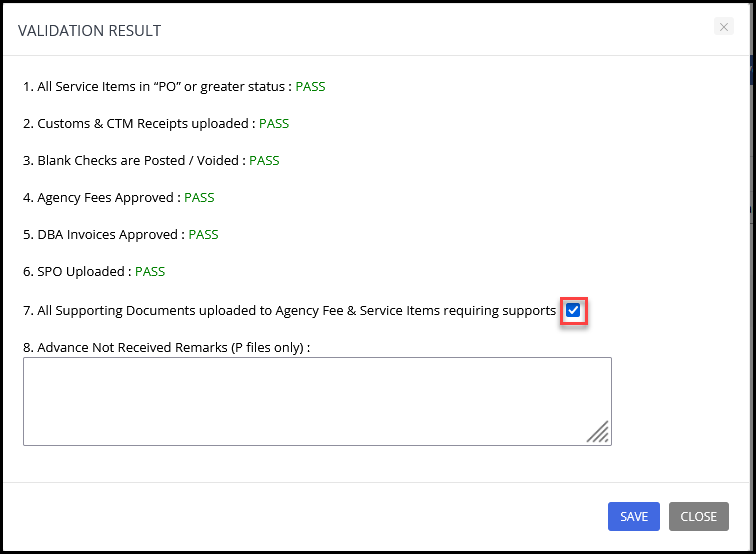
1. Within 10 days after vessel sailing, please go to “Agency Fee & Services” tab of the call. At bottom-right of screen, you will see new button labeled “Validate File”. Click on this button to see the Validation Results box as shown below.

2. If any test result in the Validation Results box is showing value as “FAIL”, then please take the necessary action. Then click “Validate File” button again to re-run tests.
3. Once the Validation Results box is showing “PASS” for all tests, then please review test item 7, which reads “All Support Documents uploaded to Agency Fee & Service items requiring supports”. Please be sure that for all service items that would require DA Supports (such as crew transport, medical, hotel, etc.), that you have uploaded the support documents to each such line item.
4. After you have confirmed that support documents have been uploaded, then click the “Validate File” button again, and tick the #7 box to confirm that you have done this. Also tick this box if none of the Service Items required DA Supports.
5. For test #8, if advance has not been received for a “P” file (for Principals that are required to advance), you will see a red asterisk (*) beside this item. If red asterisk appears, then you must enter reason for having not received advance. Please enter a valid reason, since this will be reviewed by our auditors. If no red asterisk appears, then this box can be left blank.
6. After “Validation Results” box shows “PASS” for all tests, and you have ticked box to indicate that support documents have been uploaded, then a message will appear at bottom left of screen to indicate that validation was successful (as shown below).

7. Please repeat this process for every file type (billing party) within the vessel call. You must get every file type for the call to show the “Validated’ message at bottom of screen.
8. We will monitor this, and will issue reports to indicate any vessel files which sailed over 10 days ago for which the validation process has not been completed.